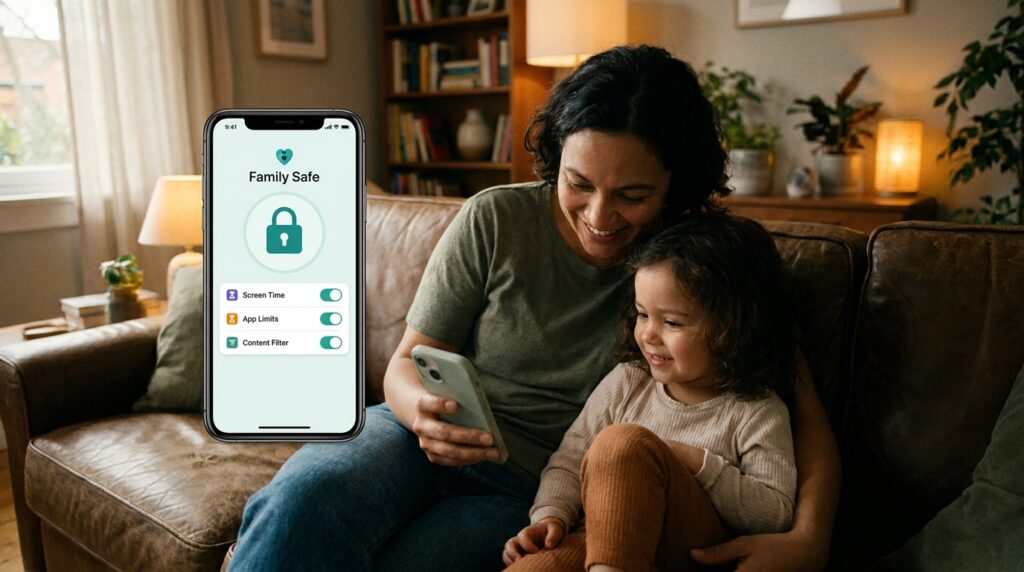
Android phones and iPhones both come with free parental controls, so you don’t need to buy a separate app. On Android, the tool is Google Family Link. On iPhone and iPad, it is Screen Time, which works through Apple’s Family Sharing.
Table Of Content
Both let a parent approve apps, set daily time limits, block mature content and plan device-free hours. Most of the setup happens on the parent’s own phone, so the child’s device stays out of the way.
Google Family Link for Android
Family Link is Google’s free app for managing a child’s Google Account and Android device from a parent’s phone.
You can use it to create a Google Account for a child under 13 (or the age that applies in your country), or to add supervision to an account your child already has. Google lists these requirements for the parent: be 18 or older, have a Google Account, live in the same country as the child, and install Family Link on an Android phone (Android 6 or newer), an iPhone or iPad (iOS 16 or newer), or a compatible Chromebook.
The child needs an Android device running Android 6 or newer, a Chromebook, or a compatible Fitbit device. Google is clear that Family Link can’t supervise an iPhone, an iPad or a computer other than a Chromebook.
What Family Link can do
Once it is set up, a parent can decide which apps the child may download or buy, block or allow apps and change app permissions. You can set a bedtime and daily screen limits, see how long the child spends in certain apps, check where the child’s Android device is, and restrict mature content on Google Play. Purchase approvals only cover purchases made through Google Play’s own billing. A separate Google Chrome and Web section under Controls lets you block explicit sites, allow only approved sites, or block and approve individual addresses.
Setting a daily limit
In Family Link, select your child at the top left, tap Screen time at the bottom, then Time limits. Turn on Daily limit, tap Weekly schedule, choose a day and enter the amount of time allowed. Tap Apply to all days of the week if you want the same limit every day.
When the limit runs out, the device locks. Google says the child can still answer phone calls and use the Emergency button on an Android phone with a calling plan. If you are happy to allow a little more time on a given day, the Bonus time button adds it without changing the schedule.
Screen Time on iPhone and iPad
Screen Time is Apple’s built-in set of parental controls, and you manage it from your own iPhone, iPad or Mac.
First, set up Family Sharing and make sure your child has their own Apple Account, set up as a Child Account. Apple stresses that a child should not share an account with anyone else. Then open Settings on your iPhone, tap Family, tap your child’s name, then Screen Time, and follow the steps. Apple recommends managing it from the parent’s device, and the parent must set the child’s Screen Time passcode there too.
What Screen Time can do
The controls fall into a few groups. Under Apps and Websites, you can allow or block specific apps and sites. Ask to Buy and Ask to Browse send you a request when your child wants to download an app or visit a new website. Apple says Ask to Browse is on by default for children under 13, and Limit Adult Websites is on by default for children under 18.
You can also set how long the child can use different kinds of apps, such as games or social media, and choose which apps are available at different times of day, such as during school. Content and Privacy Restrictions set age ratings for music, films, TV and books, and you can choose who your child can contact in Messages, FaceTime and Phone.
Apple has renamed some of these tools in iOS 27. Time limits are now Time Allowances and the timed schedule is Screen Time Schedules, while earlier versions call them App Limits and Downtime. Apple notes that the newer controls need every device in the family group to be updated. If one device can’t be updated, the older version of Screen Time still works.
Family Link and Screen Time Side by Side
The two tools cover the same basics, just under different names.
| Job | Family Link (Android) | Screen Time (iPhone and iPad) |
|---|---|---|
| Approve new apps | App approvals and blocking | Ask to Buy |
| Daily time limits | Daily limit with a weekly schedule | Time Allowances (App Limits on older versions) |
| Device-free hours | Bedtime | Screen Time Schedules (Downtime on older versions) |
| Filter content | Mature content limits on Google Play | Content and Privacy Restrictions |
| Websites | Google Chrome and Web filters (Controls tab) | Ask to Browse and Limit Adult Websites |
| Device location | Location of the child’s Android device | Location Sharing in Family settings, seen in Find My |
YouTube: Kids App or Supervised Account
YouTube has its own settings, which sit on top of Family Link or Screen Time.
For younger children, the YouTube Kids app offers a smaller selection of videos. Parents pick a content level (Preschool, Younger or Older) or choose Approve content yourself, so the child only sees videos you have picked. You can also turn off search and pause or clear watch history.
For older children ready for the main YouTube app, a supervised account lets a parent choose a content setting that limits what they can find and play on YouTube and YouTube Music.
Talk It Through Before You Switch It On
Controls work better when a child knows what they are and why they are there.
Agree the main rules together before you turn anything on, such as how much time on school days and which apps need a yes first. Writing the rules down together means nobody has to argue later about what was agreed.
Review the settings every few months, and loosen them as your child shows they can handle more. Both Google and Apple make it easy to adjust a limit for one day, which is handy for a long journey or a sick day at home.
No filter catches everything, so keep talking about what your child sees online. If something worrying comes up, talking it over with the school, or with a doctor if it is affecting your child’s sleep or mood, helps more than tighter settings alone.