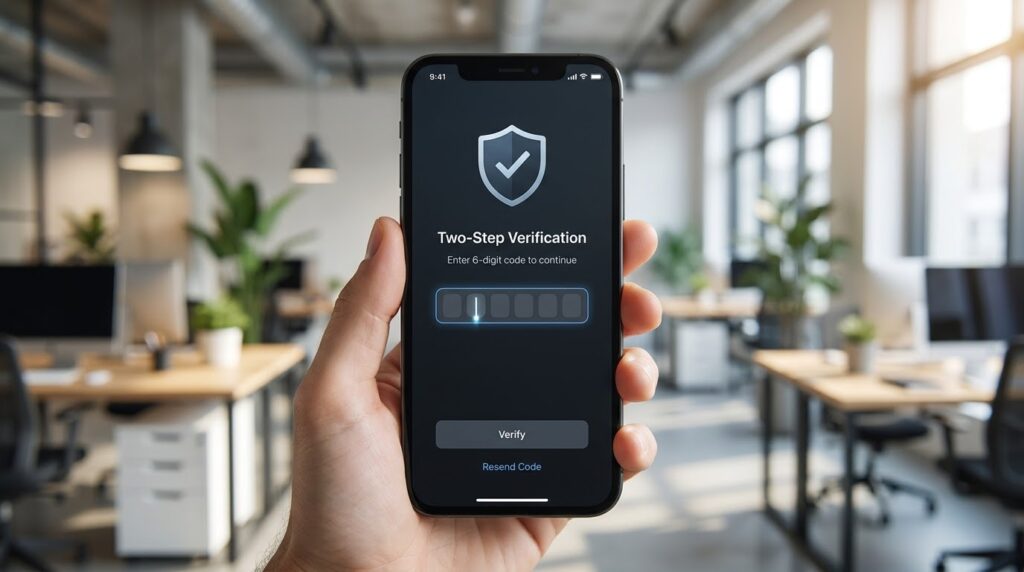
Two-step verification adds a second check, usually a code from your phone, on top of your password. Someone who steals or guesses the password still can’t get in without that second step. Turning it on takes a few minutes per account, and you only have to do it once.
Table Of Content
The names differ from app to app. Google calls it 2-Step Verification, Apple and Instagram call it two-factor authentication, and WhatsApp uses two-step verification. They all do the same job.
How the Second Step Works
The second step proves you have something physical, normally your phone, as well as knowing your password. Apps offer a few ways to do it, and you can usually set up more than one.
| Method | How it works | Good to know |
|---|---|---|
| Text message code | A code arrives by SMS each time you sign in on a new device | Easy to start with, but it depends on phone signal and on keeping your number |
| Authenticator app | An app such as Google Authenticator or Duo Mobile makes a fresh code every few seconds | Works without signal; move it carefully when you change phones |
| Prompt or passkey | You approve the sign-in on your phone, or confirm with your fingerprint, face or screen lock | Google says signing in with a passkey skips the second step because it already proves you have the device |
| Backup codes | One-time codes you print or write down | Your way back in if you lose your phone |
Google Account
Your Google Account protects Gmail, Google Photos, YouTube and often your Android phone itself, so it is the best one to start with.
Open your Google Account settings (on Android, go to Settings, Google, Manage your Google Account). Tap Security and sign-in, and under How you sign in to Google, choose Turn on 2-Step Verification. Follow the steps to add your phone.
Once it is on, set up backup codes from the same page. Google gives you a set of 10 codes, each with 8 digits, and each code works once. Print them or write them down and keep them somewhere safe at home. You can create a new set whenever you like, which cancels the old one.
WhatsApp’s two-step verification stops someone from registering your number on their own phone, even if they trick you into handing over the six-digit text code.
Go to WhatsApp Settings, then Account, then Two-step verification, and tap Turn on. For years this has used a six-digit PIN. WhatsApp’s help pages now say it is upgrading the PIN to a password, which must have at least 8 characters with at least one letter and one number. Depending on your app version, you will see one or the other.
Add an email address when the app offers it. If you forget your PIN, you can tap Forgot PIN and WhatsApp sends a reset link to that email.
WhatsApp’s own security tips are firm on one point: never share your registration code or your two-step PIN with anyone. Someone who asks for that code is trying to take over the account, however friendly the message sounds.
If WhatsApp texts you a registration code you never asked for, someone may have typed your number by mistake, or someone may be trying to move your account to their phone. Don’t pass the code on, and if two-step verification isn’t on yet, this is the moment to turn it on. With it switched on, the code alone is not enough to take your account.
Instagram and Facebook
Instagram and Facebook both handle this through Meta’s Accounts Center, so the steps are almost the same in both apps.
In Instagram, open the menu, tap Settings, then See more in Accounts Center. Choose Password and security, then Two-factor authentication, and pick the account you want to protect. You can choose a text message code or an authentication app such as Duo Mobile or Google Authenticator.
After it is turned on, Instagram gives you recovery codes. Save them in the same safe place as your Google backup codes. If you also use Facebook and both accounts are in the same Accounts Center, you can set up each one from that screen.
Apple Account
Many newer Apple Accounts already have two-factor authentication turned on, but it only takes a moment to check.
On your iPhone, open Settings, tap your name, then Sign-In and Security. If Two-Factor Authentication shows as off, tap it, enter a trusted phone number and type in the code Apple sends. Your iPhone then becomes a trusted device.
From then on, signing in on a new device asks for your password plus a six-digit code that appears on your trusted devices or arrives at your trusted number. Apple says you won’t be asked again on the same device unless you sign out completely, erase it or change your password.
Keep a Way Back Into Your Accounts
Two-step verification is only a problem when you lose the second step, so plan for that before it happens.
Store backup and recovery codes on paper, not only in a screenshot on the phone they are meant to replace. Keep your recovery email and phone number up to date in every account. On an Apple Account, adding a second trusted phone number, such as a family member’s, gives you another route in.
If you use an authenticator app, check whether it can back up or move its codes before you change phones. Google Authenticator, for example, can sync codes to your Google Account. Then sign in to each important account on the new phone before you reset the old one.
Set up two-step verification on your main email account first. Most other accounts reset their passwords through email, so protecting it protects the rest.