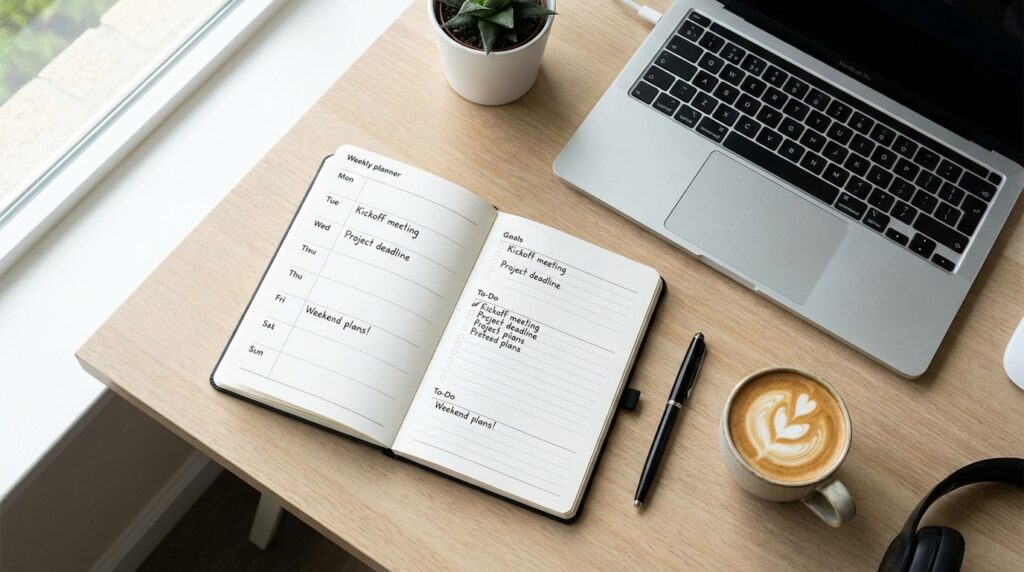
A simple weekly work plan is a short list of the few results you want by the end of the week, with time set aside in your calendar to deliver them. It takes one short planning session at the start of the week, and it saves far more time by stopping the “what should I do next?” drift. The method below works on paper, in a notes app or in a calendar.
Table Of Content
Pick One Time Each Week to Plan
Planning works best at the same time every week, such as Friday afternoon or Monday morning. Friday has one advantage: the week’s work is still fresh in your mind, and you start Monday already knowing what to do first.
Put the planning session in your calendar as a recurring appointment. Treat it like a meeting with a client, because skipping it is the main reason weekly plans fall apart.
Empty Your Head Onto One List
The first step is to write down everything that needs doing: work tasks, emails to send, calls to return, deadlines coming up and loose ideas. Check your inbox, calendar, notes and chat messages, since tasks often hide there.
Don’t sort anything yet. The aim is to get every item out of your head and onto one page, so nothing surprises you on Wednesday.
Sort Tasks by Urgent and Important
Once everything is on the list, sort it. A popular tool for this is the urgent and important grid, often called the Eisenhower matrix after US President Dwight D. Eisenhower, who spoke in 1954 about the difference between urgent and important problems. Stephen Covey made the four-box version widely known in his 1989 book The 7 Habits of Highly Effective People.
| Urgent | Not urgent | |
|---|---|---|
| Important | Do it this week, early | Book time for it |
| Not important | Hand it on, or do it quickly | Drop it |
The box that deserves the most attention is “important but not urgent”. Training, fixing a slow process or following up with a possible client never shout for attention, so they only happen if you book time for them.
Choose a Few Main Results for the Week
Your weekly plan should name a handful of main results, not every task on the list. Three to five is realistic for most people with a normal load of meetings and messages.
Write them as outcomes rather than activities. “Send the finished proposal to the client” is clearer than “work on proposal”. When Friday comes, you can tick it off or not, with no grey area.
The other tasks still need a home. Keep a “this week if time allows” list for smaller items and a “later” list for the rest.
A finished weekly plan can fit on half a page. A typical one might list three main results at the top (send the proposal, finish the monthly report, book interviews for the new role), a short list of smaller jobs underneath, and a note of when each focus block sits in the calendar. If your plan runs to several pages, it has probably turned back into a to-do list.
Block Time in Your Calendar
A task with a time slot is far more likely to get done than a task on a list. For each main result, estimate how long it needs and book blocks of time in your calendar, ideally when your energy is at its best. Plenty of people do their hardest thinking in the morning, but this varies, so go by what you know about yourself.
Some tips for time blocks:
- Book focus blocks of 60 to 90 minutes for big tasks, and protect them like meetings.
- Group small jobs such as emails, calls and admin into one or two blocks a day.
- Leave part of the week unplanned. Interruptions always arrive, and a plan with no slack breaks by Tuesday.
- Put your most important task early in the week, in case something goes wrong later.
Working in Short Sprints
If long blocks feel hard, try short timed sprints instead. The Pomodoro Technique, developed by Francesco Cirillo in the late 1980s, uses 25 minutes of focused work followed by a short break, with a longer break after four rounds. A kitchen timer or a phone timer is all you need.
Check In Each Day for Five Minutes
A short daily check-in keeps the weekly plan alive. Each morning, or at the end of the previous day, look at the plan, pick the one or two things that matter most today and check your calendar for clashes.
If something urgent appears, decide what it replaces. Moving a block is fine. Quietly dropping a main result without noticing is how whole weeks slip away.
Keep the weekly plan where you will see it every morning: a sticky note on your screen, a pinned note on your phone or the first page of your notebook.
Review the Week Before You Plan the Next
At the end of the week, spend a few minutes looking back before you plan ahead. Ask yourself what got done and why anything slipped.
Unfinished main results either move to next week’s list or get dropped on purpose. Over a few weeks you’ll start to see patterns, such as tasks that always take longer than expected or days that are always lost to meetings, and you can plan around them. If Monday mornings keep disappearing into email, for example, stop booking focus work there.
Pick a Tool and Keep It Simple
The best tool is the one you will open every day. A notebook and a pen work well. So does a calendar app alongside a basic task app such as Google Tasks or Microsoft To Do. Keep the weekly list in one place rather than spreading tasks across several apps, sticky notes and inboxes.
Detailed systems with many tags and colours are tempting, but they take time to maintain. Start simple, run the plan for a month, and add structure only where you feel a real need for it.