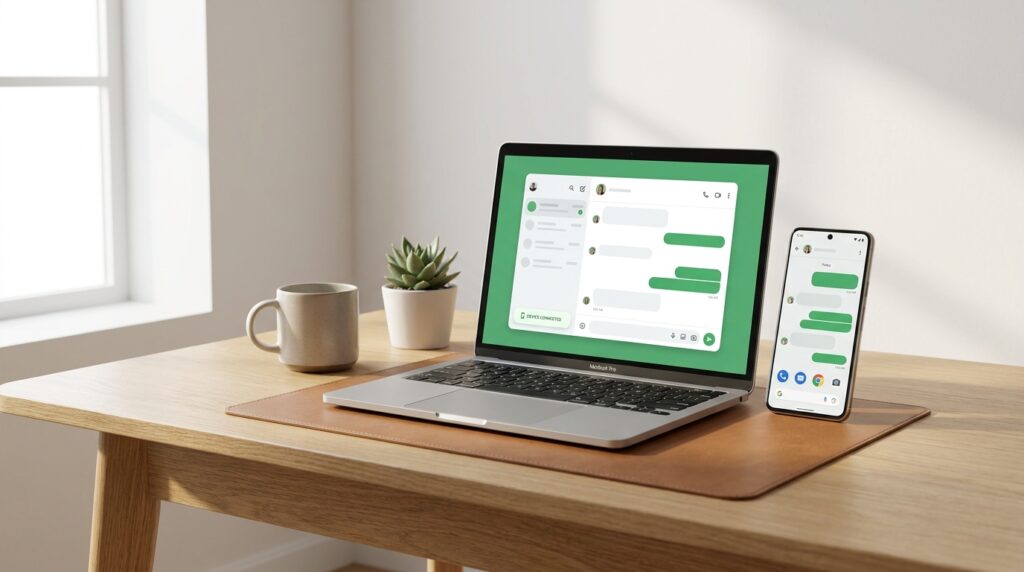
WhatsApp gives you two official ways to chat from a computer: WhatsApp Web, which runs in a browser, and the WhatsApp desktop app for Windows and Mac. Both connect to the account on your phone, so your chats, groups and contacts appear on the bigger screen without a separate sign-up.
Table Of Content
- WhatsApp Web or the Desktop App: Which One to Use
- Getting Set Up on Your Computer
- WhatsApp Web
- The desktop app
- How to Link Your Computer With the QR Code
- Linking With Your Phone Number Instead
- How Many Devices, and Does Your Phone Need to Stay Online?
- Logging Out of a Computer From Your Phone
- Privacy Tips for a Shared Computer
You link the computer once with your phone, usually by scanning a QR code. After that you can type on a full keyboard, drag files into a chat and keep WhatsApp open next to your other work.
WhatsApp Web or the Desktop App: Which One to Use
For a quick session, or on a computer that isn’t yours, WhatsApp Web is the easier pick, because there is nothing to install. The desktop app makes more sense on your own laptop or PC that you use every day. Here are the main differences, based on WhatsApp’s help pages:
| WhatsApp Web | Desktop app | |
|---|---|---|
| Where it runs | In a browser tab | As an installed program on Windows or Mac |
| What you need | A recent version of Chrome, Firefox, Microsoft Edge, Opera or Safari | 64-bit Windows 10 (version 1903) or newer, or macOS 11 or newer |
| Message history | Your recent chats are copied across | WhatsApp says the desktop app syncs more history than Web |
| Link with phone number | Available | Listed for the Windows app |
System requirements change from time to time, so check the download page before you install on an older computer.
Getting Set Up on Your Computer
Setup takes a minute or two either way, and both versions finish by showing you a QR code.
WhatsApp Web
Open your browser and type web.whatsapp.com into the address bar. A QR code appears on the page. WhatsApp’s help pages say old browsers such as Internet Explorer will not work, so update your browser first if the page refuses to load.
The desktop app
On Windows, get WhatsApp from the Microsoft Store and follow the install prompts. On a Mac, download it from the official WhatsApp download page or from the Mac App Store, then open the file and install it. Start the app and it shows the same kind of QR code as the website.
How to Link Your Computer With the QR Code
Linking means scanning the code on the computer screen with the WhatsApp app on your phone. Keep the computer page open and pick up your phone:
- On Android, open WhatsApp, tap More options (the three dots), then Linked devices and Link a device.
- On iPhone, open WhatsApp and go to Settings, then Linked devices and Link device.
- Confirm it is you with your fingerprint or face, or with the PIN you use to unlock the phone if biometrics are off.
- Point the phone’s camera at the QR code on the computer screen and hold it steady until it scans.
If WhatsApp does not recognise the computer, it asks whether you really want to link it. Tap Link device to carry on, or Don’t link if you didn’t start this yourself.
Your chats then start to appear. The phone sends an end-to-end encrypted copy of your recent message history to the computer, where it is stored. WhatsApp notes that this can take a few minutes if you have a lot of messages, and that not every older chat comes across.
Linking With Your Phone Number Instead
WhatsApp also lets you link with your phone number and a one-time code instead of a QR scan, which helps when the phone’s camera is broken or the code won’t read. WhatsApp’s help page lists this option for WhatsApp Web and the Windows app.
On the computer, click Link with phone number (some versions say Log in with phone number). Choose your country, enter the phone number of your WhatsApp account and click Next. An eight-character code appears on the screen.
On your phone, tap the WhatsApp notification that says Enter code to link new device, confirm the request, and type in the code from the computer. The computer links just as it would after a QR scan.
How Many Devices, and Does Your Phone Need to Stay Online?
You can link up to four devices to one WhatsApp account at the same time, and your phone does not have to stay connected while you use them. WhatsApp Web and the desktop app keep sending and receiving messages even when the phone is switched off or has no signal.
There is one limit to remember. You need to open WhatsApp on your main phone at least once every 14 days, or WhatsApp logs out all your linked devices. If that happens, link the computer again with a fresh QR code.
A second phone counts toward the same limit of four, so if you already use WhatsApp on another phone, you have fewer spaces left for computers.
Logging Out of a Computer From Your Phone
You can log a computer out remotely from the Linked devices screen on your phone, which is handy if you forgot to log out at work or at a friend’s place.
On Android, tap More options, then Linked devices. On iPhone, go to Settings, then Linked devices. Tap the computer you want to remove and tap Log out. To log out while you are still sitting at the computer, use the Log out option in the menu of WhatsApp Web or the desktop app.
If the list shows a device you don’t recognise, log it out straight away and check your account security settings on the phone, including two-step verification.
Before you walk away from a shared or public computer, log out of WhatsApp on it, then open Linked devices on your phone and make sure that computer has disappeared from the list.
Privacy Tips for a Shared Computer
On a family PC or an office machine, a few settings stop other people from reading your messages. Closing the browser tab or the app does not remove the link, so these steps matter even if you only step away for a moment.
- Turn on app lock. In WhatsApp Web, go to Settings, then Privacy and App lock, and choose a password of 6 to 128 characters. You can set it to lock after 1 minute, 15 minutes, 1 hour or 8 hours.
- Lock it by hand when you get up. Open More options and choose Lock app, or press Ctrl+Alt+L on Windows or Cmd+Ctrl+L on a Mac.
- Hide message text in pop-ups. Under Settings and Notifications, untick Show previews so a new message doesn’t flash its content on screen for anyone nearby.
- Clear your downloads. Photos and documents you save from a chat stay on that computer like any other download, and logging out of WhatsApp does not delete them.
- Check Linked devices on your phone now and then, and log out of anything you no longer use.
On a computer that only you use, the desktop app with app lock turned on is a comfortable everyday setup. On anyone else’s machine, stick to WhatsApp Web and log out from the menu as soon as you finish.