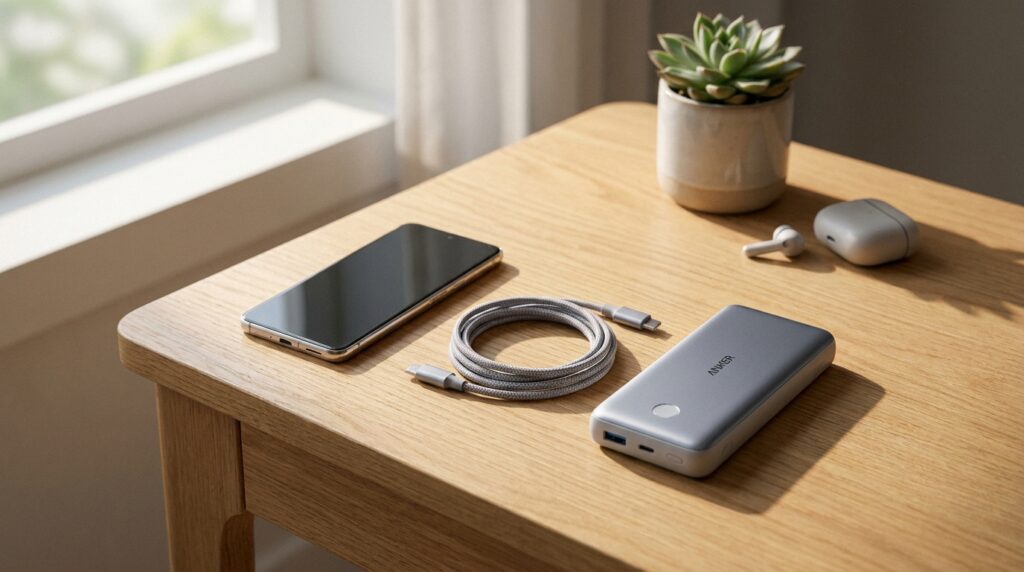
The biggest battery savings come from four places: the screen, apps running in the background, the built-in power saving mode and heat. Change a few settings in each and most phones get noticeably further through the day, with no extra apps needed.
Table Of Content
The tips below follow the advice in Apple’s and Google’s own help pages. Menu names on Android can differ slightly between phone makers, so search the Settings app if a name doesn’t match.
Find Out What Is Draining the Battery
Your phone already tracks which apps use the most power, and that list tells you where to start.
On iPhone, open Settings and tap Battery. You’ll see charts of recent use and a list of apps with their share of the battery. On Android, go to Settings, then Battery, where most phones show battery usage by app.
If one app you barely open sits near the top, check its settings or think about removing it. Video, games, maps and camera apps are usually high on the list because they keep the screen bright and the processor busy, which is normal.
Turn Down the Screen
The screen is usually the single largest user of power, so small changes here add up.
Lower the brightness, or let the phone adjust it for you. On iPhone, Auto-Brightness sits under Settings, Accessibility, Display and Text Size. On Android, look for Adaptive brightness in the Display settings.
Shorten the screen timeout so the display switches off sooner when you put the phone down. Google’s help pages suggest a setting such as 30 seconds, found under Display (on Pixel phones, Display and touch, then Screen timeout). Google also lists dark theme as a battery saver, and it is easy to switch on in the same menu.
Use Low Power Mode or Battery Saver
Both systems have a power saving mode that trims background work when you need the charge to last.
On iPhone, it is called Low Power Mode. Turn it on in Settings, Battery, or add it to Control Centre for one tap. Apple recommends it whenever the battery runs low.
On Android, it is usually called Battery Saver, under Settings, Battery. Google says it turns on dark theme and limits or turns off background activity, so some apps may update or notify you a little later than usual. You can set a schedule so it switches on by itself at a chosen battery level.
Rein In Background Apps and Location
Apps that refresh, track your location or light up the screen with alerts keep using power after you close them.
On iPhone, Apple suggests turning off Background App Refresh (Settings, General, Background App Refresh) for apps that don’t need it. Check Location Services under Settings, Privacy and Security, and set apps you rarely use to While Using or Never. Turning off notifications for apps that wake the screen often also helps.
On Android, Google recommends keeping Adaptive Battery switched on. It learns which apps you use less often and lets them run less in the background. You can also restrict apps that use a lot of battery, and turn off Bluetooth or location when you don’t need them.
Apple and Google both suggest using Wi-Fi instead of mobile data where you can, so connect at home and at work rather than leaving everything on the mobile network.
Quick Settings on iPhone and Android
This table lists the main settings side by side so you can work through them in one sitting.
| Goal | iPhone | Android |
|---|---|---|
| See which apps use power | Settings, Battery | Settings, Battery, Battery usage |
| Save power when low | Low Power Mode | Battery Saver |
| Limit background activity | Background App Refresh | Adaptive Battery |
| Dim the screen sensibly | Auto-Brightness | Adaptive brightness and a short Screen timeout |
| Protect long-term health | Optimized Battery Charging or Charge Limit | Charging protection settings (names vary by maker) |
Protect the Battery’s Long-Term Health
Daily habits decide how well the battery holds its charge after a year or two, and heat is the main thing to watch.
Apple gives a comfort zone of 0 to 35°C (32 to 95°F) for iPhones and warns that ambient temperatures above 35°C can permanently reduce battery capacity. Don’t leave the phone in a hot car or in direct sun, and take it out of a thick case if it gets hot while charging.
Heat does more lasting harm to a phone battery than almost any charging habit. If the phone feels hot, unplug it, remove the case and let it cool before you carry on.
Optimized Battery Charging on iPhone learns your routine and holds the charge at 80 percent until shortly before you usually unplug. Apple says it needs at least 14 days to learn your habits. On iPhone 15 and later, you can also set a fixed Charge Limit between 80 and 100 percent, in steps of 5. Find both under Settings, Battery, then Charging (or Battery Health and Charging on iPhone 14 and earlier).
Many Android phones have a similar option that slows charging overnight or stops at a set level. Look under Settings, Battery, as the name changes between makers.
If you plan to put a phone away for months, Apple suggests leaving it at about 50 percent charge in a cool, dry place below 32°C, and topping it up to 50 percent every six months.
Keep Software Up to Date
Updates often include power fixes, and both Apple and Google list them as part of good battery care.
On iPhone, go to Settings, General, Software Update. On Android, go to Settings, System, Software update, and update your apps through the Play Store too. A restart now and then also clears out apps that are stuck running.
If the battery still drains fast after all of this, check its condition. On iPhone, the Battery Health screen shows the maximum capacity compared with when it was new. A battery that has worn down a long way, or a phone that switches off with charge left, is worth taking to Apple, the phone maker or an authorised repair shop for a check.