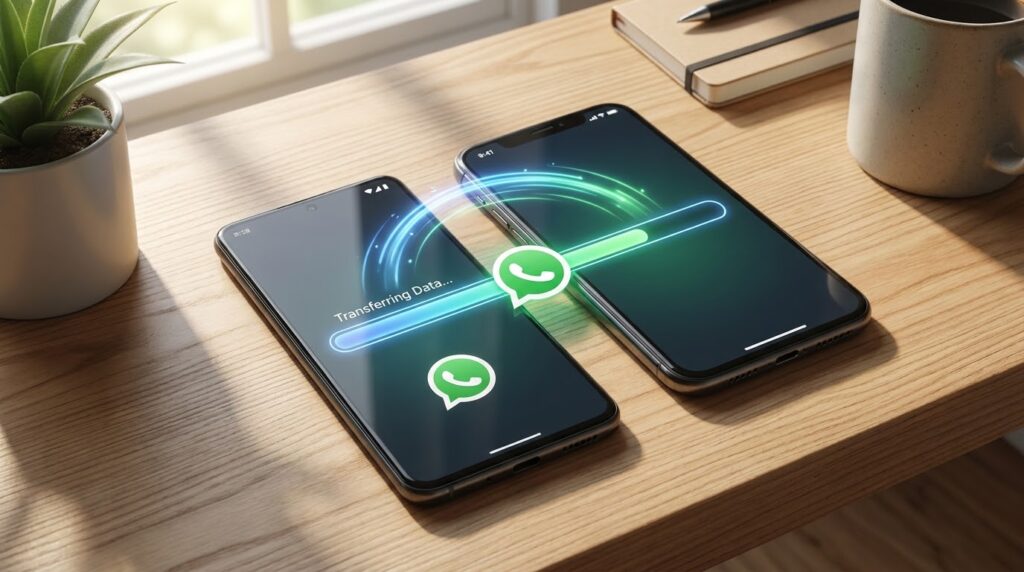
The safest way to move WhatsApp to a new phone is to use WhatsApp’s own tools: a direct transfer between the two phones, or a cloud backup that you restore on the new one. Which one suits you depends on whether you are staying with the same kind of phone or switching between Android and iPhone.
Table Of Content
Every method ties your chats to your phone number. If the number on the new phone is different, the chats will not come across, so sort out your SIM or eSIM first.
Before You Start: A Short Checklist
A few minutes of preparation prevents most failed transfers. Go through these points on both phones before you touch any transfer button.
- Update WhatsApp on both phones from the Google Play Store or the App Store.
- Use the same phone number on the new phone as on the old one.
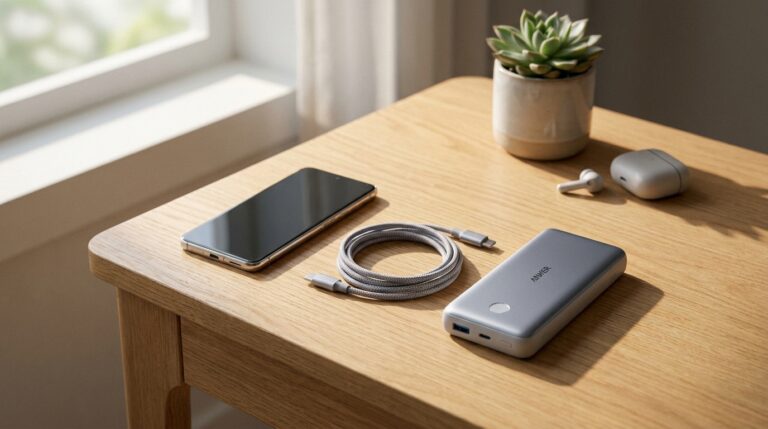
- Plug both phones into chargers, because years of photos and videos can take a while to copy.
- Connect both phones to the same Wi-Fi network and keep them side by side.
- Check that the new phone has enough free storage for everything you are moving.
- If you plan a direct transfer, do not register WhatsApp on the new phone yet. WhatsApp’s help pages say the new phone must not be registered until you start the move from the old one.
Android to Android: Direct Transfer With a QR Code
Between two Android phones, the quickest route is the built-in Transfer chats tool, which copies your history over Wi-Fi without any cloud backup. WhatsApp lists Android 6 or newer on both phones as the minimum.
On the old phone, open WhatsApp, tap the three-dot menu, then go to Settings, Chats, Transfer chats and tap Start. Accept the permissions it asks for.
On the new phone, install WhatsApp, tap Agree and continue, and verify your number. When it asks about restoring, choose Transfer from old phone, then tap Continue and Start. The new phone shows a QR code. Scan it with the camera on the old phone, then tap Accept on the new phone.
A percentage bar tracks the progress. Keep both screens on and stay inside WhatsApp until it reaches the end, then tap Next. On Android 12 and older, the phone asks for precise location permission for the nearby connection. WhatsApp says it does not collect your location from this.
iPhone to iPhone: Direct Transfer or iCloud
iPhone users have two official choices: the same kind of QR-code transfer, or a restore from iCloud.
Direct transfer
Update both iPhones to the latest iOS and the latest WhatsApp. On the old iPhone, tap Settings in WhatsApp (or your profile picture), then Chats, Transfer Chats to iPhone and Start. On the new iPhone, verify your number, tap Continue on the transfer screen, allow local network access, and scan the QR code it shows with the old phone. Keep the phones close and stay in the app until you see Transfer completed.
iCloud backup
On the old iPhone, go to WhatsApp Settings, then Chats, Chat backup and Back up now. WhatsApp’s help page sets a few conditions for restoring: you need the same phone number and the same Apple Account, iCloud Drive turned on, and free space on both iCloud and the iPhone of at least 2.05 times the size of the backup. On the new iPhone, install WhatsApp, verify your number and follow the prompt to restore.
Android Backups to Your Google Account
An Android backup is your safety net if the old phone is lost, broken or already wiped. In WhatsApp, go to Settings, then Chats and Chat backup. You can tap Back up for a backup right now, or pick how often it runs automatically and whether videos are included.
These backups now count toward your Google Account storage, which is shared with Gmail, Google Drive and Google Photos. Google says each account includes up to 15 GB at no charge, and that new accounts created from March 2026 start with 5 GB and get the rest after verifying a phone number. Leaving videos out of the backup is the simplest way to keep it small.
For extra privacy, turn on End-to-end encrypted backup in the same Chat backup screen. You protect it with a password or a 64-digit key, and nobody else can open it, including WhatsApp and Google.
Write down your encrypted backup password or key and keep it somewhere other than the phone you are replacing. If you lose it, WhatsApp cannot reset it for you, and the backup cannot be restored.
To restore, install WhatsApp on the new Android phone, sign in to the same Google Account, verify the same number and tap Restore when WhatsApp offers it.
Switching Between Android and iPhone
Moving across platforms works too, though with stricter rules than a same-platform move.
Android to iPhone
The move runs through Apple’s Move to iOS app, which you use while setting up the iPhone. WhatsApp’s help page lists Android 5 or newer, iOS 15.5 or newer, and an iPhone that is brand new or freshly reset to factory settings. Both phones need power and the same Wi-Fi network, or the Android phone can join the iPhone’s hotspot.
Your account info, profile photo, individual and group chats, communities, chat history, media and settings come across. Call history and your display name do not. WhatsApp also warns that other transfer apps are not supported and cause problems.
iPhone to Android
This move also needs an Android phone that is new or has been reset to factory settings, plus the latest WhatsApp on both phones and a steady Wi-Fi connection. You scan a QR code shown on the Android phone with the iPhone’s camera, and the history copies across directly. Check WhatsApp’s help page for the current minimum Android version before you start, because it has changed over time.
If the Transfer Stops or Fails
Most failures come from a handful of causes, and each one is easy to fix.
Different numbers are the most common cause, followed by a new phone that was registered on WhatsApp too early. Low storage on the new phone, a phone that went to sleep halfway through, and the two phones sitting on different Wi-Fi networks also stop transfers.
If you were part way through and it failed, delete WhatsApp from the new phone, reinstall it and start the transfer again from the old phone. WhatsApp keeps separate help pages for failed moves in each direction, and they list the exact checks for your phones.
Keep the old phone as it is until you have opened a few chats on the new one and checked that photos, voice notes and group chats all open. Only then is it safe to reset or sell it.