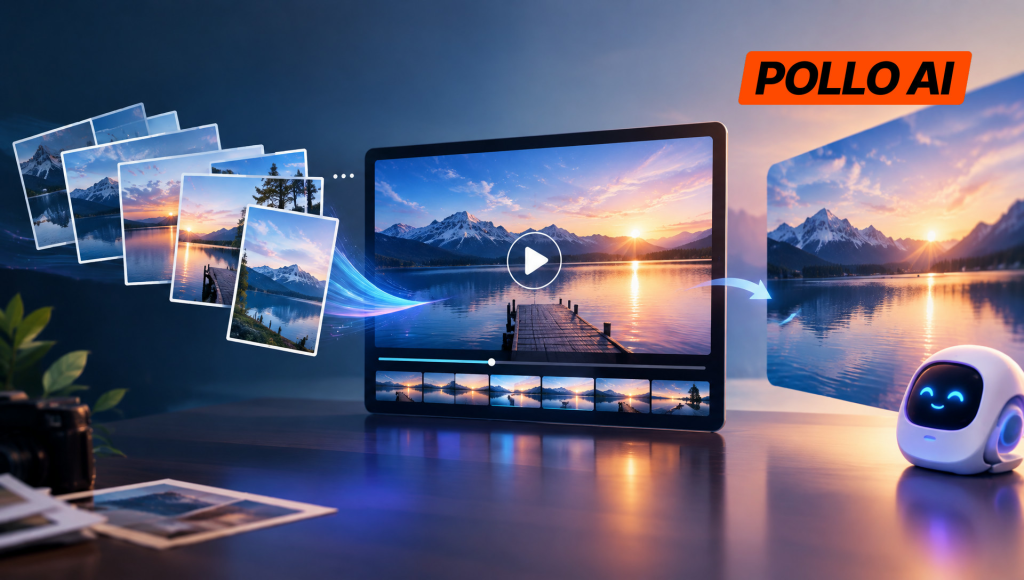
Creating a smooth video from multiple pictures requires natural movement, consistent subjects, and well-connected scenes. For creators, marketers, and online sellers, manually animating photographs can be time-consuming. With Pollo AI, picture to video AI makes it easier to turn static images into moving clips. This guide covers its features, five practical steps, and tips for creating smoother transitions between pictures.
Table Of Content
- What Is Pollo AI Image to Video?
- How to Create Smooth Videos from Multiple Pictures with Pollo AI
- Step 1: Choose Pictures That Fit the Same Story
- Step 2: Choose How the Pictures Will Be Used
- Step 3: Upload the Pictures and Describe the Motion
- Step 4: Keep Video Settings Consistent
- Step 5: Connect the Clips and Export
- Tips for Creating Smoother Videos from Multiple Pictures
- 1. Keep Visual Details Consistent
- 2. Give Each Shot One Main Movement
- 3. Avoid Sudden Changes in Camera Direction
- 4. Check the Joins, Not Just Individual Clips
- Conclusion
What Is Pollo AI Image to Video?
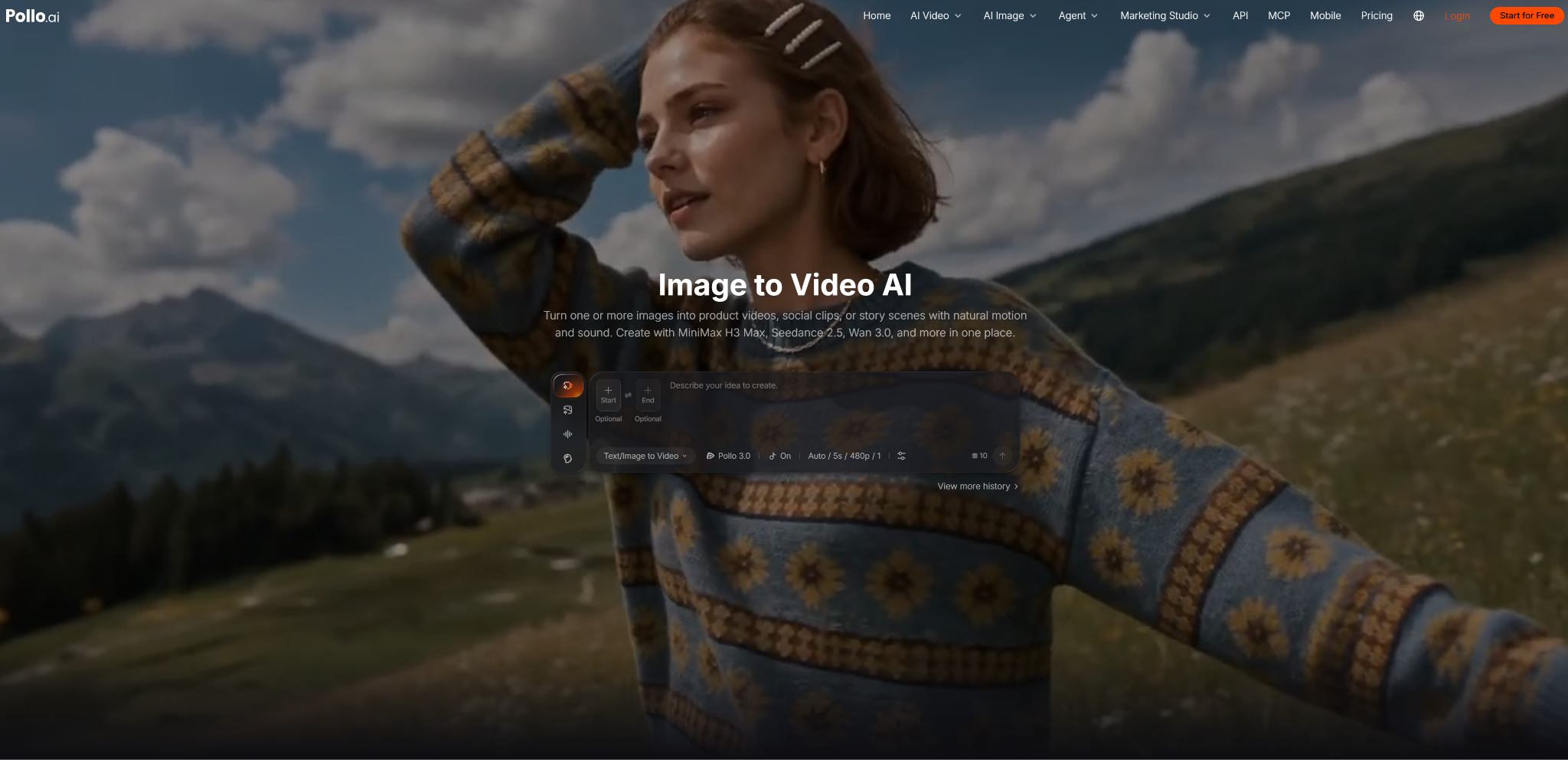
Pollo AI Image to Video turns still images into moving clips using text prompts. Instead of just switching between photos, it adds movement to subjects, backgrounds, and camera angles.
For projects involving several pictures, Pollo AI offers different approaches. Image to Video can animate each photo separately, while Reference to Video uses multiple images to create footage with consistent characters, objects, or settings. Compatible models also support start-and-end frames for controlled movement between two images.
These options are useful when a video needs more than a basic slideshow. A travel creator might animate beach, café, and sunset photos into a short montage. An online seller could use several product angles to generate footage featuring the same item.
The main advantage is getting more use out of existing pictures without manually animating every frame. However, reference images don't necessarily appear as separate shots in a chosen order. For a specific photo sequence, generating individual clips and editing them together offers more control.
How to Create Smooth Videos from Multiple Pictures with Pollo AI
A smooth multi-picture video starts with choosing how the images should connect, not just uploading them. Here's a five-step approach.
Step 1: Choose Pictures That Fit the Same Story
Start with photos that have a clear connection.
For a coastal travel montage, that might be a wide beach shot, a beachfront café, and a sunset over the water. The sequence moves from an overview of the location to a closer scene, then a natural ending.
Similar lighting, colors, or recognizable landmarks can make those changes feel less abrupt.
Pollo AI supports JPG and PNG files with a minimum resolution of 300 × 300 pixels. Clear subjects and enough space around them also leave room for natural-looking movement.
Step 2: Choose How the Pictures Will Be Used
Open Pollo AI Image to Video at https://pollo.ai/image-to-video and select a workflow.
If every picture needs its own moment on screen, Image to Video can generate separate clips for later editing.
For images that should contribute to one scene, Reference to Video supports up to three pictures and lets users identify subjects to keep consistent. This can help when different photos feature the same product or character.
If the goal is to move directly from one particular image to another, a model with start-and-end-frame support is another option.
Step 3: Upload the Pictures and Describe the Motion
Upload the selected image or references, then enter a prompt explaining the intended movement.
For the beach scene, the prompt could describe waves approaching the shore while the camera slowly pans toward the coastline. The following café scene could use a similar camera movement to maintain continuity.
When using multiple references in one generation, the prompt should also make clear which subjects or details need to appear in the resulting scene.
Keeping the movement intentional helps prevent the video from feeling like a series of unrelated effects.
Step 4: Keep Video Settings Consistent
Before generating, check the available aspect ratio, duration, and resolution settings.
For a video built from separate clips, keeping the same aspect ratio throughout avoids awkward framing changes during editing. Similar clip lengths can also make the pacing easier to manage.
Vertical footage suits TikTok and Instagram Reels, while horizontal footage works well for YouTube or website videos.
Available settings vary by model. Once they're selected, generate each shot and review the results.
Step 5: Connect the Clips and Export
Preview the clips in their intended order rather than judging each one on its own.
A beach panorama followed by a café shot may work better with a simple cut if both scenes share a similar camera direction. A slower transition might suit the final sunset.
Pollo AI provides an AI video editor for additional adjustments. After arranging the clips, check whether the cuts feel natural and whether any shot needs regeneration.
When the sequence flows well from beginning to end, the finished video can be downloaded.
Tips for Creating Smoother Videos from Multiple Pictures
1. Keep Visual Details Consistent
Similar lighting, colors, and framing help different photos feel like parts of the same video. When a product or character appears across scenes, reference images can help preserve its appearance.
2. Give Each Shot One Main Movement
Overloaded prompts can cause awkward motion. For a product shot, something as simple as "The camera slowly circles the handbag, revealing its texture while keeping its shape unchanged" is easier to control.
3. Avoid Sudden Changes in Camera Direction
A slow pan followed by a fast spin can make two otherwise good clips feel disconnected. Matching movement speed and direction usually creates a more comfortable transition.
4. Check the Joins, Not Just Individual Clips
Watch for flickering, changing object shapes, mismatched framing, or noticeable jumps between scenes. Even good-looking clips may need trimming or regeneration once placed side by side.
Conclusion
Turning multiple pictures into a smooth video takes more than adding motion to each photo. The images need a sensible order, compatible camera movements, and transitions that don't distract from the story.
Pollo AI provides several ways to animate and work with picture collections, from separate clips to reference-based generation. The right approach depends on whether the goal is a photo-by-photo montage or a single scene built from multiple references.
A little planning before generation, followed by a careful review of the transitions, can make the final video feel more like a connected sequence than a slideshow.